Set up user accounts
To access the system, an employee needs to have unique sign-in credentials and to be activated.
User name guidelines
-
For cloud deployments, user names and employees provisioned through Verint Identity Management or a third-party Identity Provider (IdP) are read-only in WFO.
-
For on-premises deployments, user names for users and employees provisioned through a third-party Identity Provider (IDP) are read-only in WFO.
-
Do NOT assign the internal system user name WLSAdmin to an application user. Doing so prevents WFO from starting once you sign out of the current session.
-
If user name conflicts are possible, include a fully qualified domain name in the format: user name@FQDN. Example: john_doe@domain.com.
-
Non-ASCII characters are not supported in user names.
Modifications after import
If you import employee information that includes system credentials, you can modify user names and passwords as follows:
-
After adding an employee to the system, or importing users through a file, you can modify both the user name and password.
-
After importing Windows domain users who require Windows authentication, you can modify onlythe user name, not the password.
For cloud deployments, user name and password fields for users and employees synchronized with Identity Management or an IdP are read-only.
Procedure
-
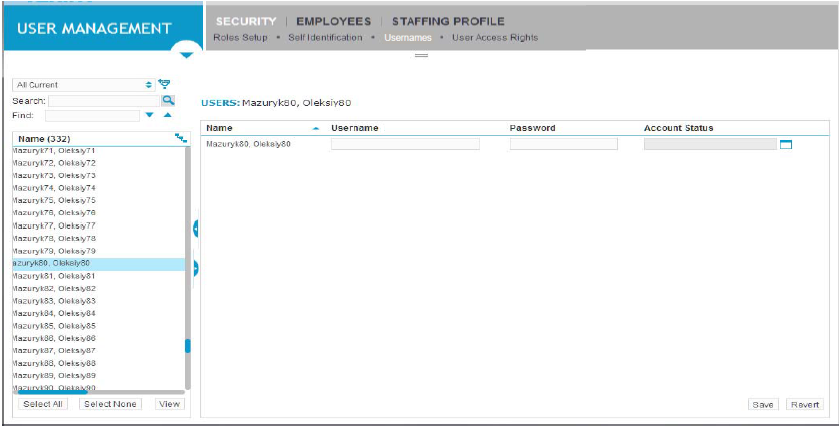
Go to User Management Module that an administrator uses to create a profile for each employee in their organization.. Under Security, select Usernames.
-
Select an employee.
-
Enter or modify the credentials as necessary.
-
To activate the user, select the icon next to Account Status.
-
Select the appropriate option for the employee.
-
Select Save.
Enable DB Authentication for employees (bulk option)
Provision a new user or employee through Identity Management